Description
Deviking Order Autoprint
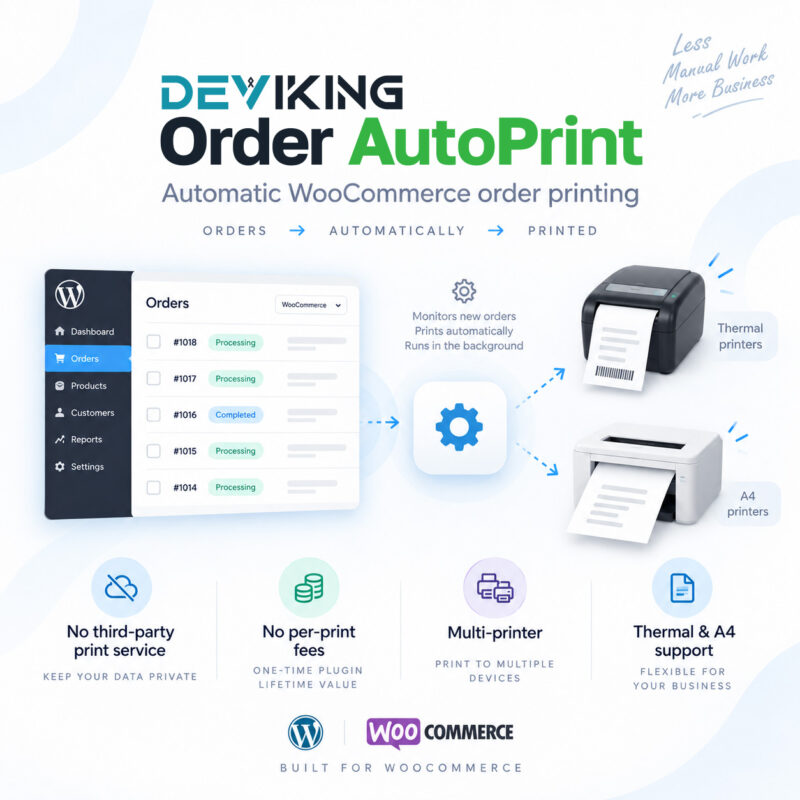
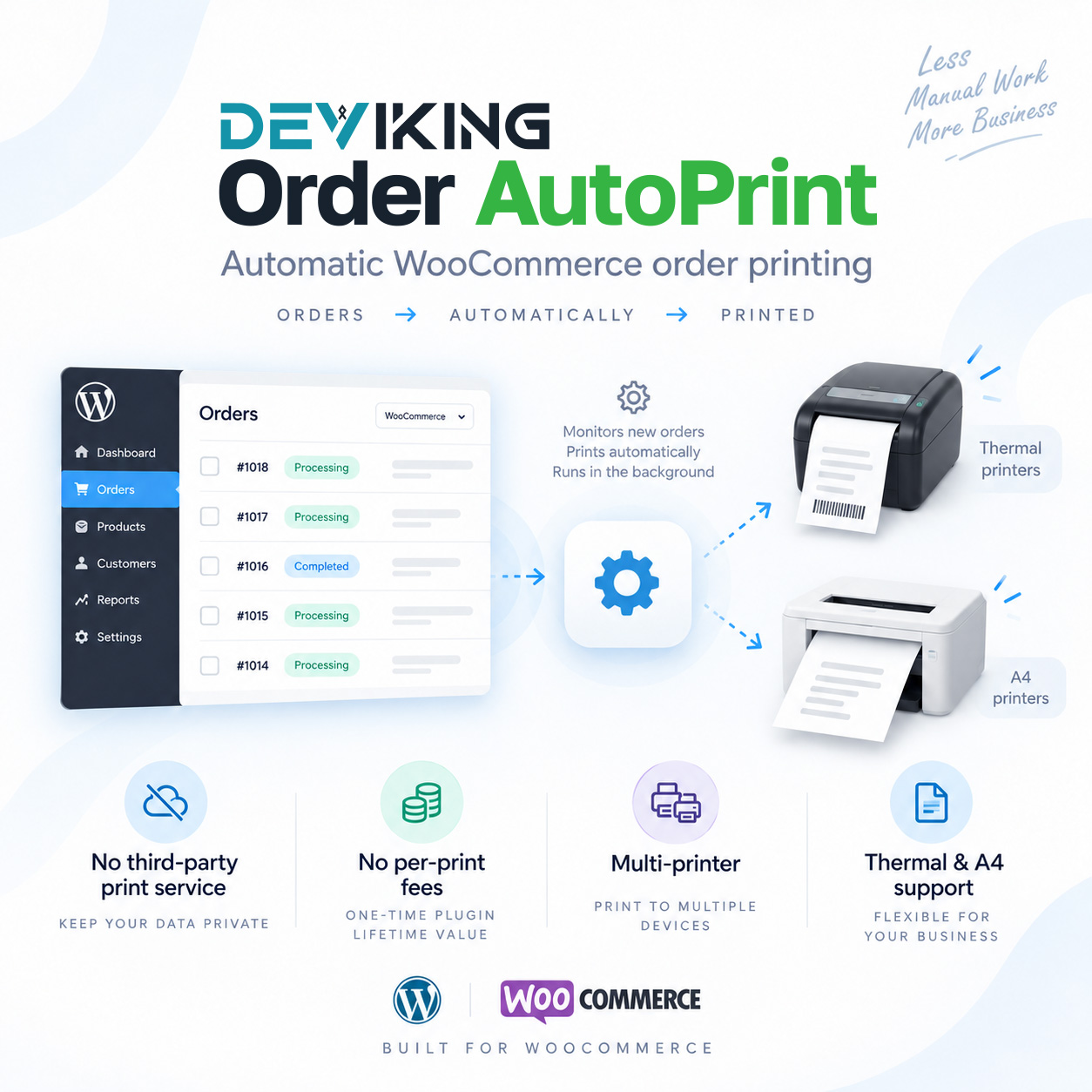
Automatic WooCommerce order printing directly to your local printers — without third-party printing services or per-print fees.
Deviking Order Autoprint connects your WooCommerce store directly with the printers installed on your Windows computers.
When an order reaches the conditions you define, the plugin creates the print job and the Deviking Print Agent delivers it directly to the selected printer. There is no external printing platform between your store and your printer, no print credits, and no charge for every order you print.
The system is designed for stores, warehouses, kitchens, fulfillment departments and businesses that need reliable automatic printing as part of their WooCommerce workflow.
Automatic Order Printing
Create printing rules and automatically send orders to the appropriate printer when their WooCommerce status changes.
For example, you can automatically:
- Print new processing orders at the warehouse.
- Send kitchen tickets to a dedicated thermal printer.
- Print packing lists when an order is ready for fulfillment.
- Send different orders to different printers according to shipping method, payment method, destination or product category.
Once configured, no manual action is required.
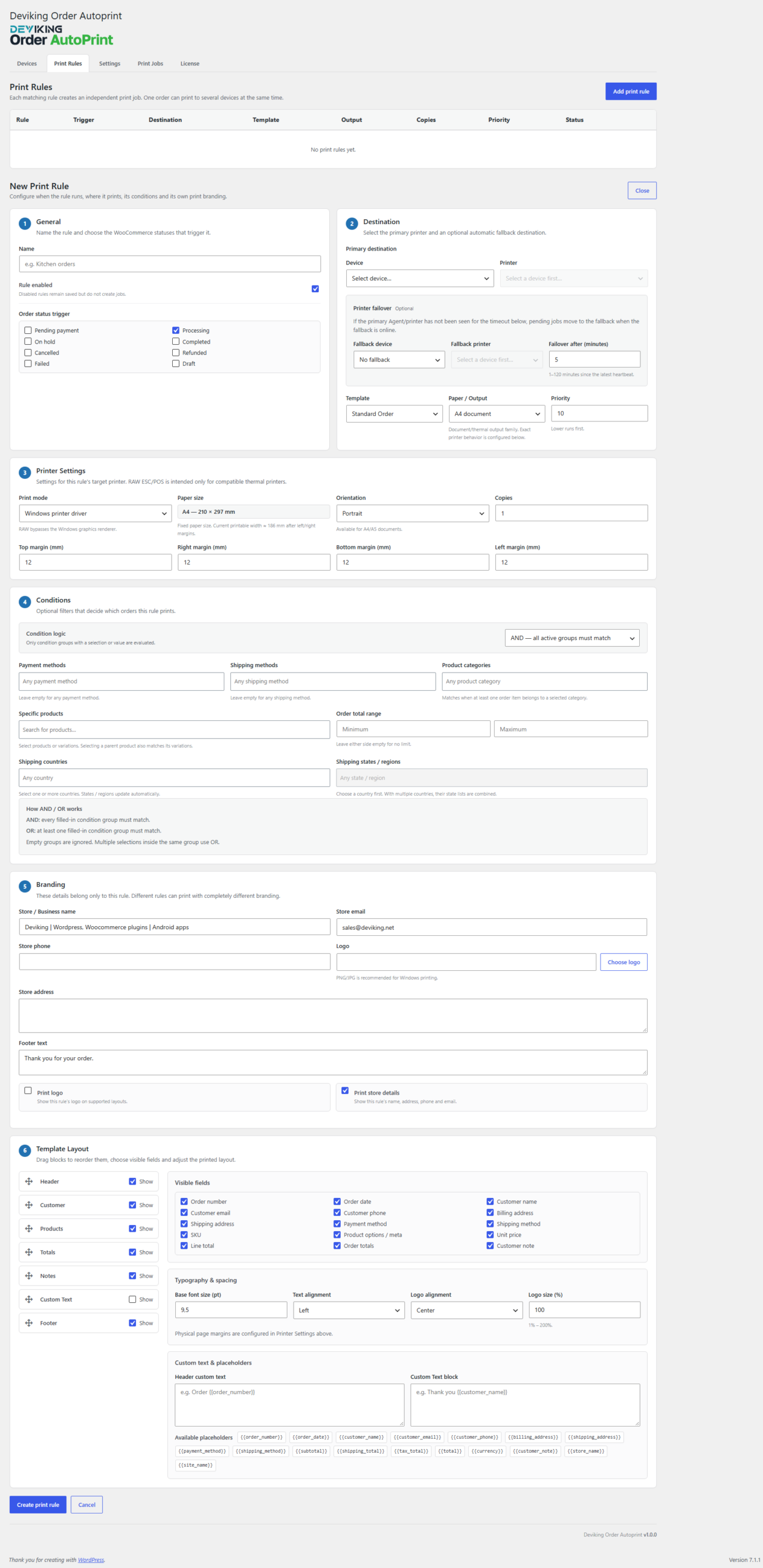
Advanced Print Rules
Create multiple independent rules and decide exactly what should be printed, when and where.
Rules can use conditions such as:
- WooCommerce order status
- Payment method
- Shipping method
- Product category
- Shipping country
- Shipping state / region
- Minimum order total
- Maximum order total
Each rule can have its own printer, document type, layout and branding.
Rules can also be duplicated to quickly create similar printing workflows.
Multiple Print Formats
Choose the appropriate document format for each printing rule:
- A4
- A5
- 80mm thermal
- 58mm thermal
This allows the same WooCommerce store to use standard office printers and thermal receipt printers at the same time.
Ready-to-use Print Templates
Different documents can be generated depending on the purpose of the print job:
- Standard Order
- Customer Receipt
- Packing List
- Delivery Note
- Kitchen Ticket
Each rule can use a different template.
Customizable Document Layout
Control which information appears on the printed document and in what order.
Available layout sections include:
- Header
- Customer information
- Products
- Order totals
- Order notes
- Custom text
- Footer
Sections can be reordered and individual fields can be enabled or disabled according to your workflow.
You can also configure typography, alignment, spacing and margins.
Per-rule Branding
Branding can be configured separately for every printing rule.
Add:
- Company logo
- Store or business name
- Address
- Phone
- Custom footer
Logo size and alignment can also be adjusted.
This means one WooCommerce installation can produce different documents for different departments or business workflows.
Multiple Printers
Use any compatible printer installed in Windows.
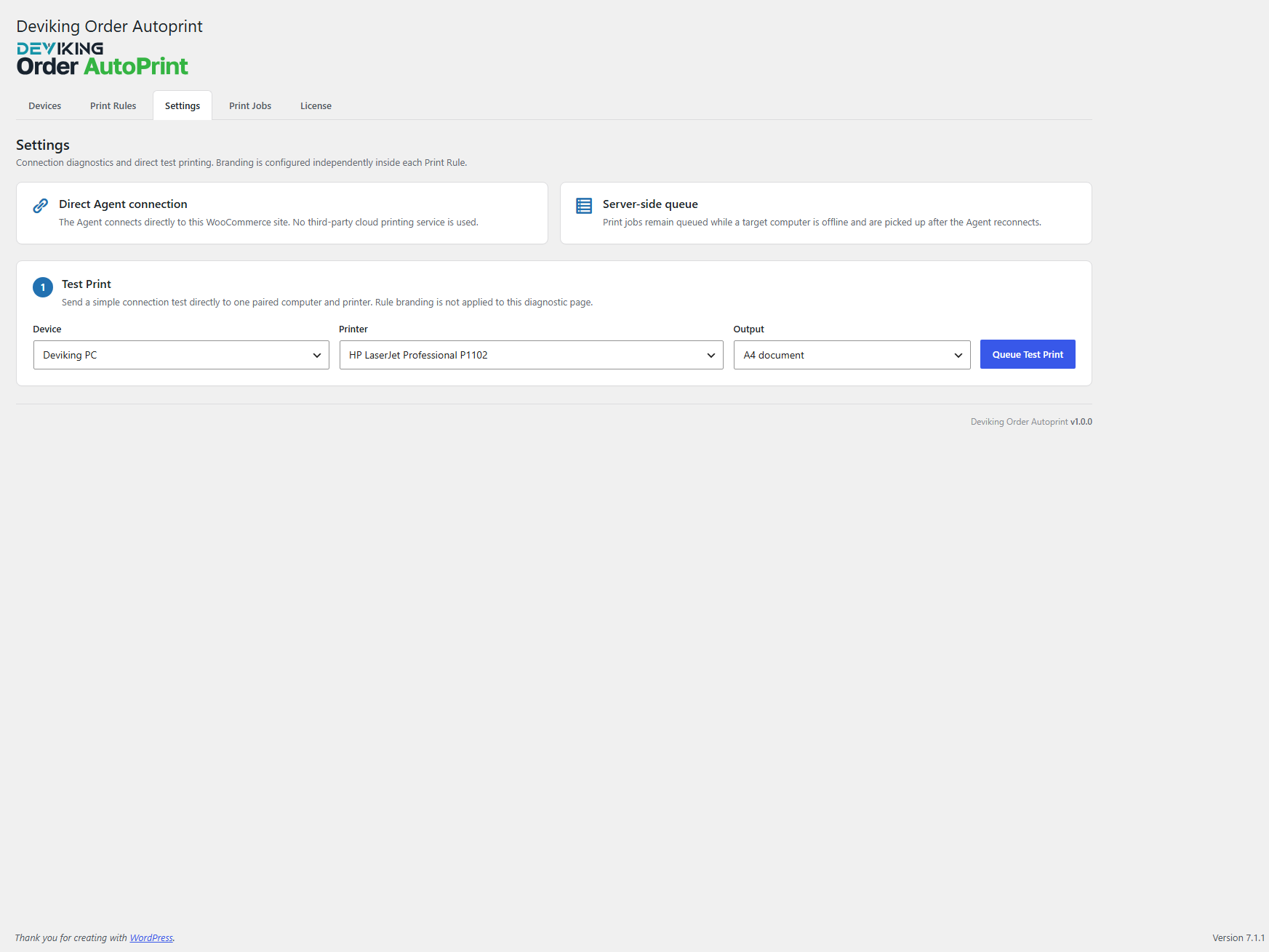
The Agent automatically detects the available Windows printers and makes them available inside WooCommerce.
You can use:
- Local USB printers
- Network printers
- Wi-Fi printers
- Office printers
- Thermal receipt printers
As long as Windows can use the printer, Deviking Order Autoprint can assign jobs to it.
Multiple Computers and Print Agents
A single WooCommerce store can have multiple computers running the Deviking Print Agent.
For example:
- Office PC → invoices or order sheets
- Warehouse PC → packing lists
- Kitchen PC → kitchen tickets
- Dispatch PC → delivery documents
Each computer registers independently and reports its available printers to WooCommerce.
Multiple WooCommerce Sites on One Agent
The Windows Agent also supports multiple independent WooCommerce sites.
A customer operating several licensed stores can connect them all to the same Agent installation.
Each site keeps its own:
- Connection
- Device ID
- Authentication token
- Print jobs
- License
There is no need to install a separate Windows Agent for every WooCommerce store.
Printer Failover
A printing rule can use both a primary printer and a fallback printer.
If the primary Agent or printer remains unavailable for the configured period, the print job can be redirected to the fallback printer.
This helps reduce interruptions in environments where printing is operationally important.
Manual Printing and Reprinting
Automatic printing is not the only option.
From the WooCommerce order screen you can manually:
- Print an order
- Reprint an order
- Select a print rule
- Select a printer
- Choose the number of copies
Bulk printing actions are also available for multiple WooCommerce orders.
Print Job Management
Every print request is recorded inside WooCommerce.
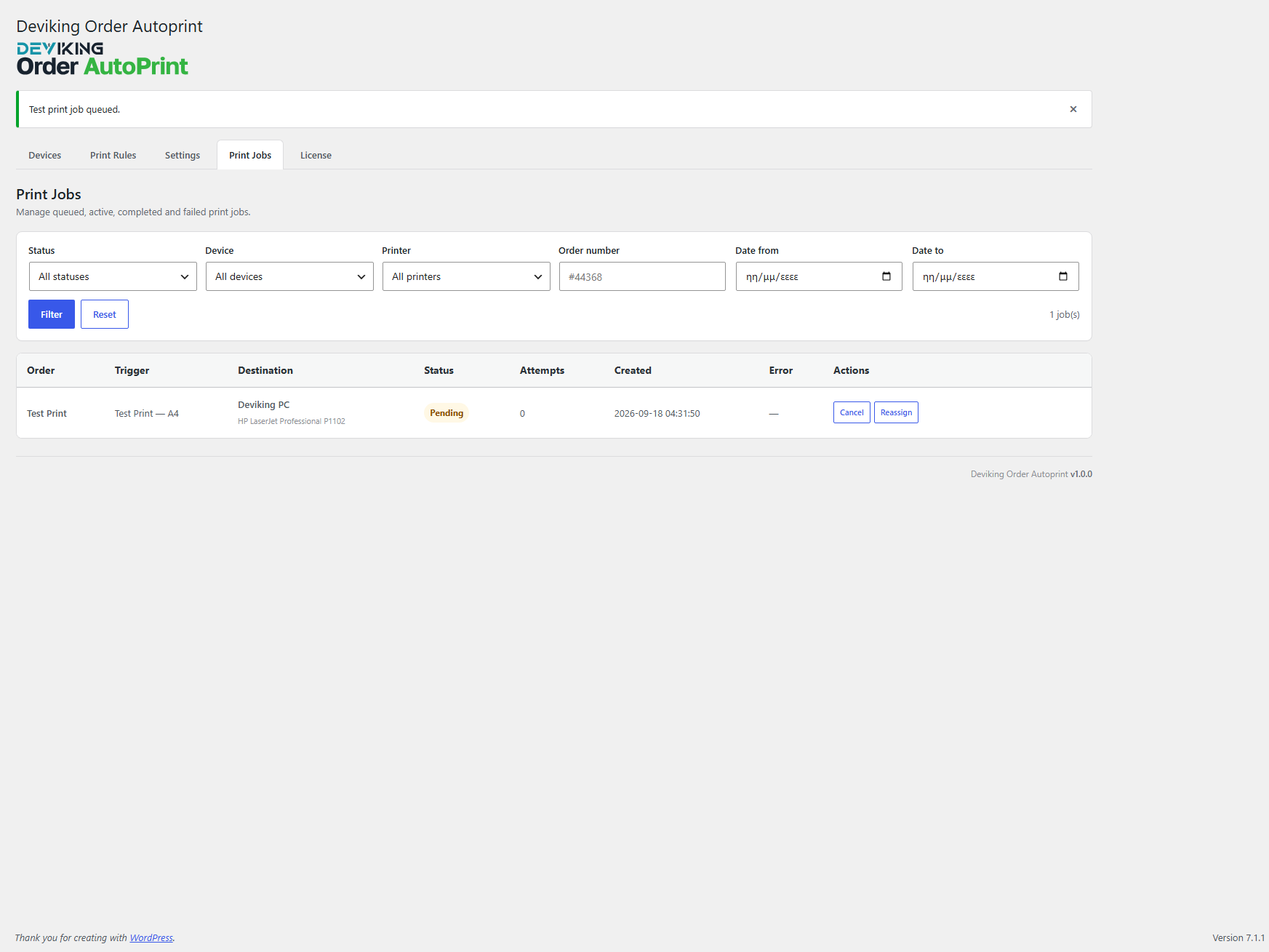
The Print Jobs screen provides visibility into jobs with statuses such as:
- Pending
- Printing
- Printed
- Failed
- Cancelled
Administrators can:
- Retry failed jobs
- Reassign a job to another printer
- Cancel pending jobs
- Search by order
- Filter by device
- Filter by printer
- Filter by status or date
This provides a complete operational history of the printing process.
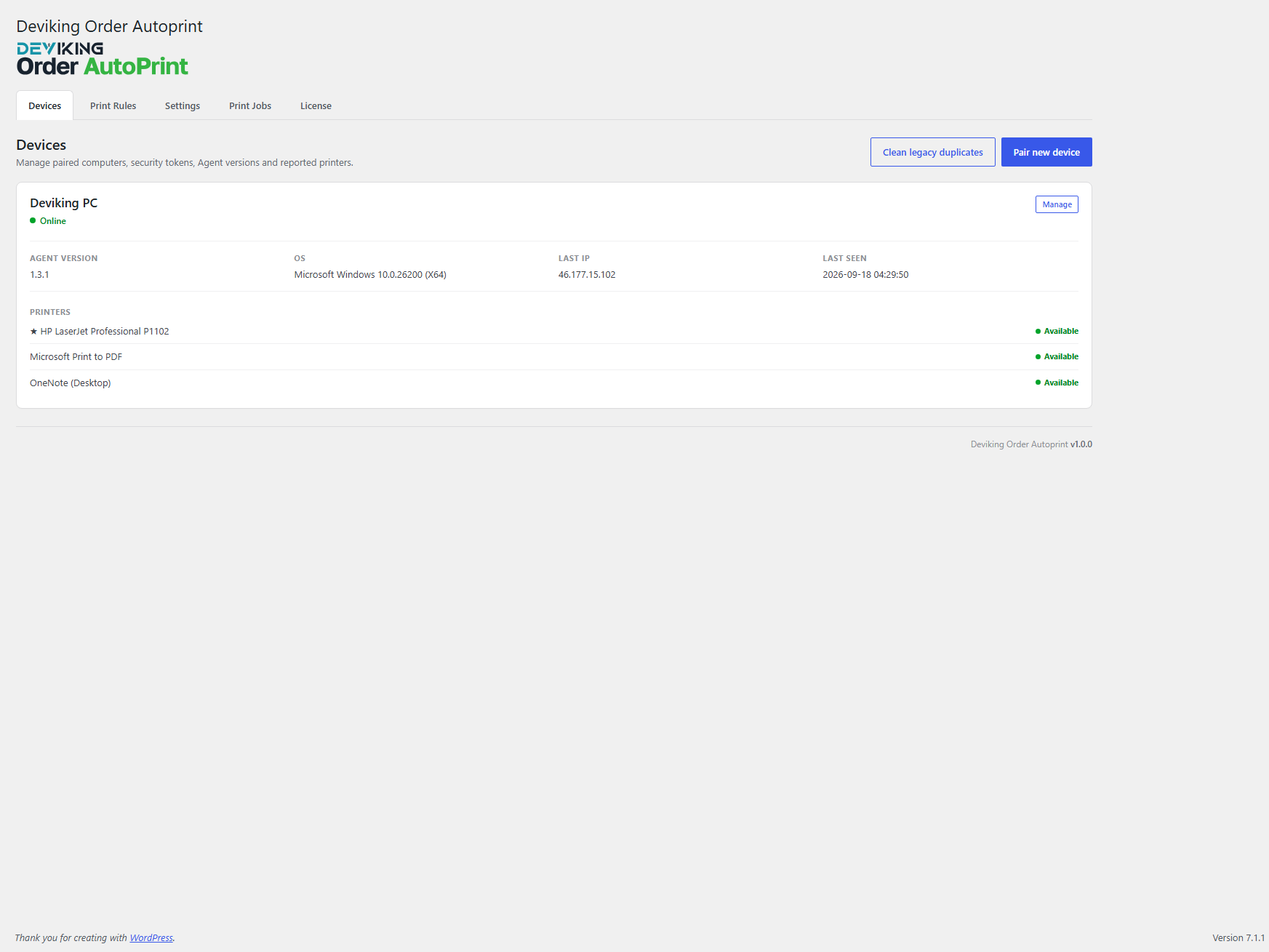
Device Management
Connected Print Agents can be managed directly from WordPress.
Available information and controls include:
- Device name
- Online / Offline status
- Agent version
- Operating system
- Last connection
- Last IP
- Installed printers
- Printer availability
- Rename device
- Revoke device access
- Remove device
The plugin can also indicate when a newer Agent version is available.
Secure Pairing
A Print Agent is connected to WooCommerce using a temporary pairing code.
After pairing, the Agent receives its own secure device credentials and communicates with the store without requiring the WordPress administrator password.
Communication is initiated by the Agent through HTTPS, so no inbound ports or router port forwarding are required.
Reliable Background Printing
The Print Agent runs in the Windows background and can automatically start with Windows.
It includes:
- System tray operation
- Automatic reconnect
- Offline recovery
- Retry handling
- Print job deduplication
- Local logging
- Graceful shutdown
- Automatic Agent update support
The Agent is provided as a self-contained Windows application, so customers do not need to install .NET separately.
No Third-party Printing Service
Deviking Order Autoprint does not require an external cloud printing provider.
The workflow is direct:
WooCommerce → Deviking Print Agent → Your Printer
That means:
- No per-print fees
- No print credits
- No third-party printing subscription
- No external print platform required
- Unlimited prints on your licensed site
Your WooCommerce store remains in control of the print jobs.
WooCommerce HPOS Compatible
Deviking Order Autoprint is designed to work with modern WooCommerce installations and supports High-Performance Order Storage (HPOS).
Licensing
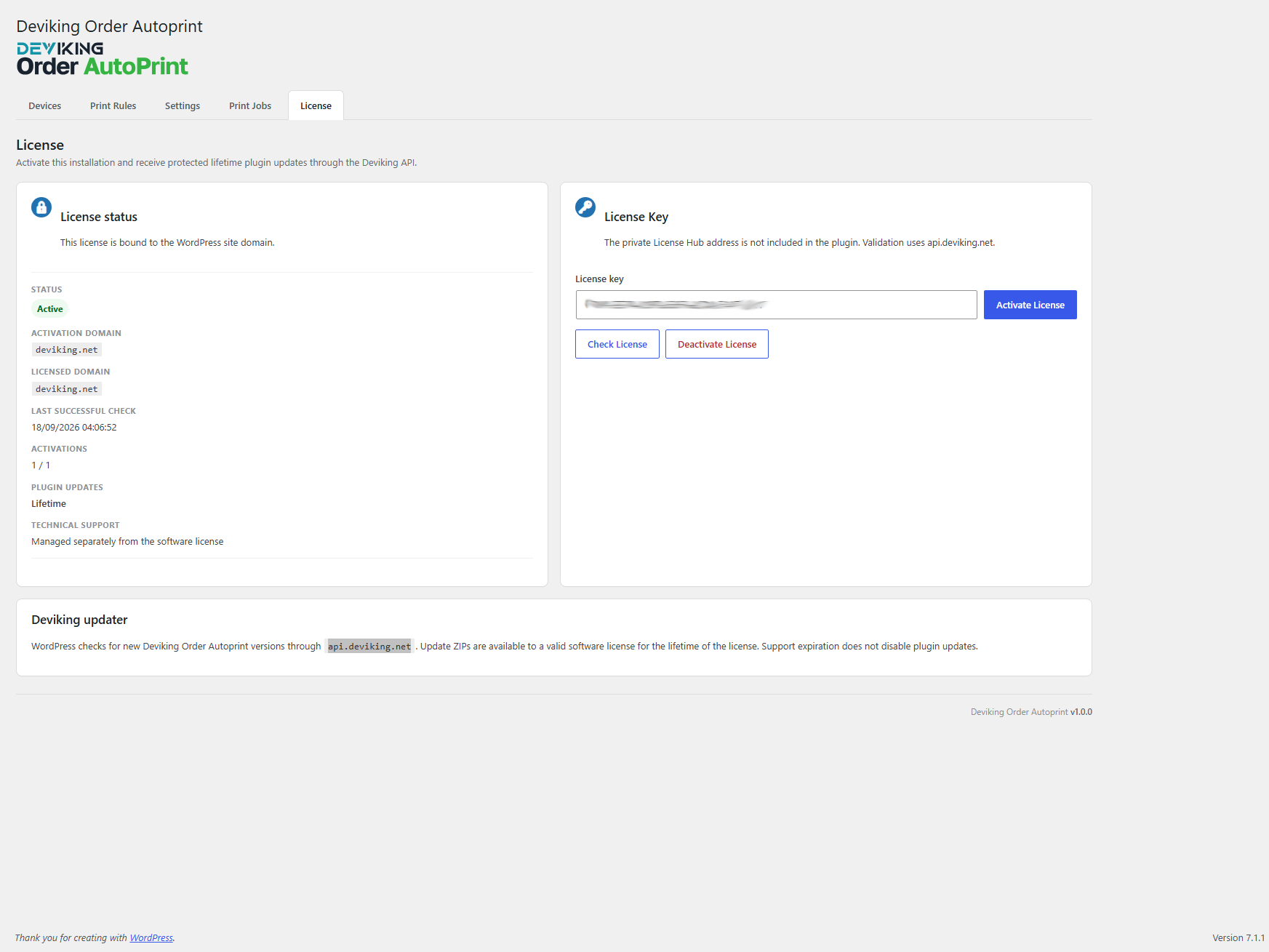
Each Deviking Order Autoprint license is activated for one WordPress/WooCommerce site.
Within that licensed site you can use multiple:
- Print Agents
- Computers
- Printers
- Printing rules
- Print jobs
Additional licenses can be used for additional WooCommerce sites, while a single Windows Agent can connect to several licensed sites.
Designed for Real WooCommerce Workflows
Deviking Order Autoprint is suitable for businesses such as:
- Online stores
- Warehouses
- Fulfillment operations
- Restaurants and kitchens
- Retail stores
- Order preparation departments
- Dispatch departments
- Businesses operating several WooCommerce stores
The objective is simple: when WooCommerce needs something printed, it should reach the correct printer automatically, reliably and without another paid printing platform in the middle.
Screenshots
Changelog
Version 1.0.0
- Main Release